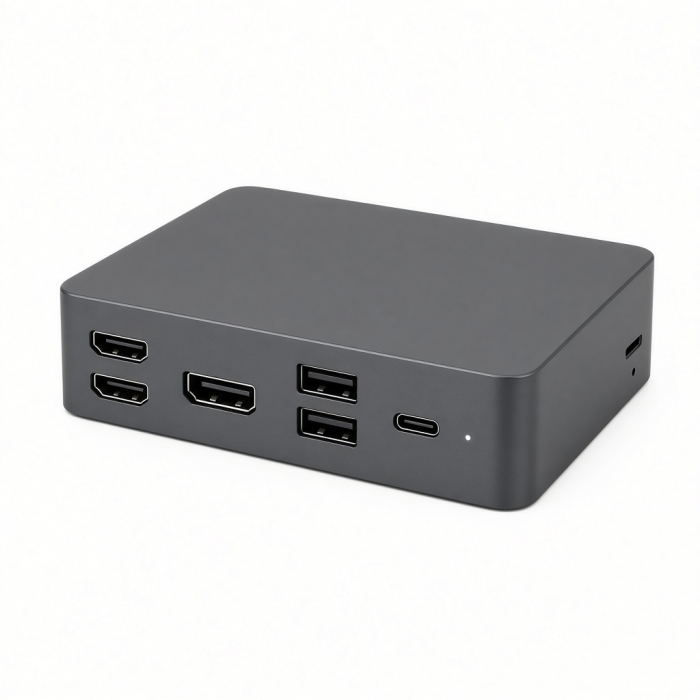
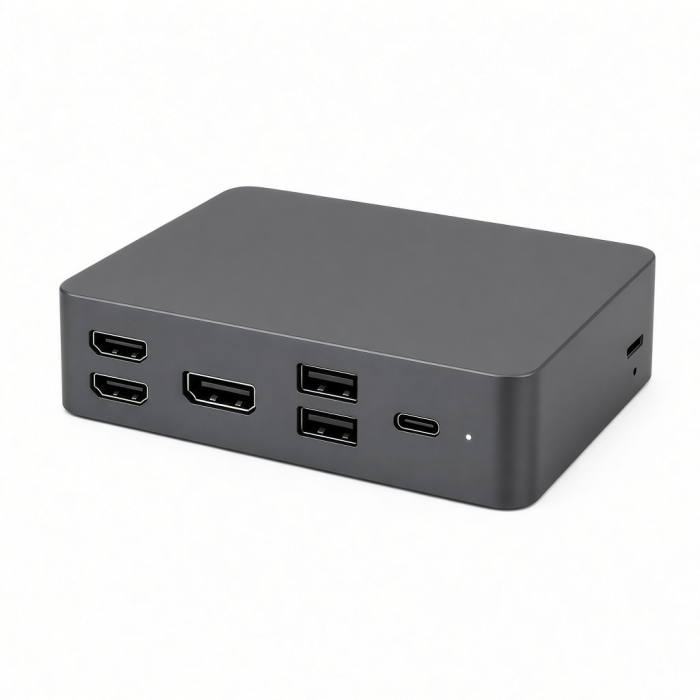
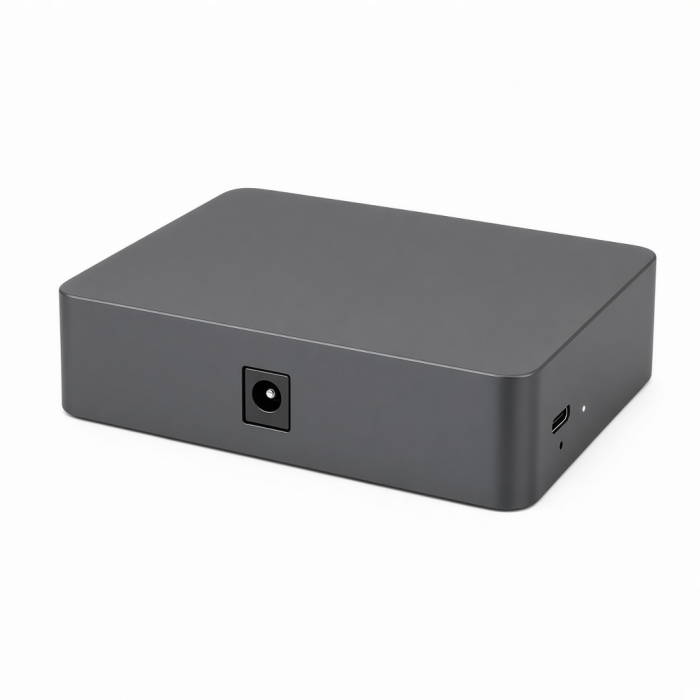
The Triple 4K Display Docking Station is designed to take your visual experience to the next level. Truly universal, this docking station is compatible with any host device – Mac or Windows OS – that is equipped with a USB-C or USB-A port. If you are looking for a high-performing, multi-display workstation, then this dock is just what you need.
Tech Specs
Connector Type
USB-C & USB-A
Dimensions & Weight
Length: 191mm / 7.52in
Width: 85mm / 3.35in
Height: 32mm / 1.26in
Weight: 278 grams / 9.8 ounces
Included Cable Length: 3.23ft (38.75in)
SKU / UPC
ST-D4KTM-US / 810086360994
ST-D4KTM-EU / 810086361021
ST-D4KTM-UK / 810086361106
ST-D4KTM-AU / 810086361113
Speed
- Designed for MacBooks including the latest M1/M2/M3/M4 models
- Features 12 powerful ports
- Supports 3x 4K/60Hz video displays
- Delivers up to 100W to host device
- 2x DisplayPort 1.4 4k/60Hz – DisplayLink Software Required
- 3x HDMI 2.0 Ports 4K60Hz – 2x Run viaDisplayLink Software, 1x DP Alt Mode
- 1x USB 3.1 Gen 2 Port 10Gbps – 7.5 Charging
- 1x USB-C 3.1 Gen 2 Port 10Gbps – 7.5 Charging
- 2 x USB 3.0 Ports - 5Gbps
- 1 x USB-C 3.0 Port - 5Gbps
- 1 Gigabit Ethernet Port
- Universal Compatibility withDisplayLink Software
- DC/20V Port – 130W Power Supply IncludedAudio Port In/Out
- Kensington Lock*macOS 11.0 or higher, DisplayLink Manager is required for multiple monitor support
Compatibility
Note: Requires installation ofDisplayLink Softwarebefore using
MacBook Neo
- MacBook Neo (13-inch, 2026)
MacBook
- MacBook Pro M5 Max (16-inch, 2026)
- MacBook Pro M5 Max (14-inch, 2026)
- MacBook Pro M5 Pro (16-inch, 2026)
- MacBook Pro M5 Pro (14-inch, 2026)
- MacBook Pro 16-inch (2019 - 2024)
- MacBook Pro 14-inch (2021 - 2025)
- MacBook Pro 13-inch (2016 - 2023)
- MacBook Pro 15-inch (2016 - 2019)
- MacBook Air M5 (15-inch, 2026)
- MacBook Air M5 (13-inch, 2026)
- MacBook Air 15-inch (2022 - 2025)
- MacBook Air 13-inch (2018 - 2025)
Mac/iMac
- iMac 24-inch (2021 - 2024)
- iMac 21.5-inch (2017 - 2021)
- iMac 27-inch (2017 – 2020)
- iMac Pro (2017)
- Mac Mini M6 (2026)
- Mac Mini M5 Pro (2026)
- Mac mini (2018 - 2024)
- Mac Studio (2022 - 2025)
iPad
- iPad Pro 12.9-inch (2021 - 2024)
- iPad Pro 11-inch (2018 - 2024)
- iPad Air (2020 - 2025)
- iPad (2022 - 2025)
- iPad mini (2021 - 2024)
- *Does not support multi-display function; DisplayLink software is not supported by iOS
iPhone
- iPhone 17 Pro / Max (2025)
- iPhone 16 Pro / Max (2024)
- iPhone 15 Pro / Max (2023)
- *Does not support multi-display function; DisplayLink software is not supported by iOS
Dell**
- XPS 13 Plus (9320)
- XPS 15 (9530)
Lenovo**
- ThinkPad X1 Carbon Gen 12
- Yoga 9i Gen 9
Microsoft**
- Surface Pro 9
- Surface Laptop Studio 2
- Surface Laptop 5
OS Compatibility
- iOS/iPadOS 10.2 or later
- macOS x 10.6-10.12 or later
- Windows 11, 10, 8**
- Chrome OS
**System Requirements: Thunderbolt 4, Thunderbolt 3, USB4, or USB 3.2 Gen2 with DP Alt Mode Type-C ports required for optimal use
Important Info
What’s In The Box
- Triple 4K Display Docking Station
- User Manual
- 130W Power Supply
- USB-C Cable with USB-A Connection Adapter
Important Information
*macOS 11.0 or higher, DisplayLink Manager is required for multiple monitor support**USB-A host devices will only support two external monitors max using Display 2 and Display 3 ports. Only USB-C host devices will support triple monitor output.***Only USB-C host devices that support Power Delivery will charge at up to 100W. USB-A host devices will not charge through the docking station.
Quick Guide
Download
Frequently Asked Questions
FAQ
For California Residents
See CA Proposition 65 Warning
Why can't I hear Audio on my Headphones when connected to the 3.5mm Audio Port of this Hub, dock or adapter?
You will need to head to System Settings > Sound > Output
Then plug your 3.5mm headphones (or speakers) into the 3.5mm port of the dock, hub or adapter and select "USB PnP Audio Device or General USB Audio Device"
The Aux port will support most 3.5mm Headphones, speakers or microphones.
If you are still experiencing issues, please reach out to us directly at [email protected]
Does the Triple 4K Docking Station work with a USB-A connection?
Yes, there is an included USB-C-to-USB-A adapter with the dock for connecting to a host device via USB-A. Using USB connections, DisplayLink lets you break through this barrier and connect multiple monitors to your computer without needing built-in video ports.
Note: Requires installation of DisplayLink Software before using.
Triple 4K Display Docking Station Overview YouTube Video: https://www.youtube.com/watch?v=FFN5LklxYq4
How to save main window when docking?
When connecting your dock, you may want to have a preferred main screen to get started on your work flow.
Here's how to make your setup seamless!
Step 1: Go to the top left corner to select the "Apple Logo" > Select "System Settings"
Step 2: You'll be brought to the "System's Setting" page > Select " Displays" > " Arrange.."
Step 3: There is a white bar that is on the top display monitor. You will select this, holding and dragging to the screen you prefer to be your main screen.
Completed: Now when docking, your Mac will remember the last orientation from the last connection!
Is it Compatible with Monitors Featuring a 1920x1200 Resolution?
Certainly, the Triple 4K Display Docking Station is compatible with monitors featuring a 1920x1200 resolution. It boasts support for resolutions up to 4K@60Hz as well.
Is DisplayLink Software required?
Yes, we recommend downloading DisplayLink software for full functionality.
https://.net/pages/displaylink-instructions
-509x403.png "QICHENG TRADE LIMITED")