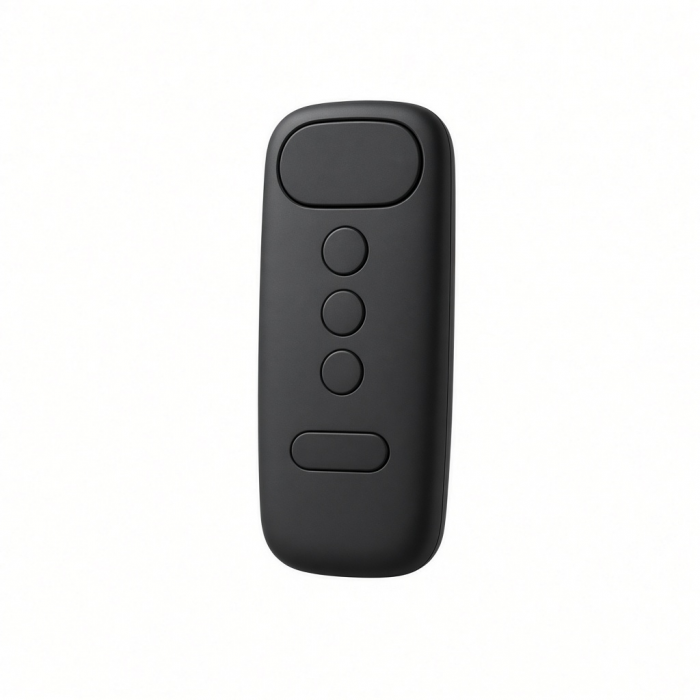
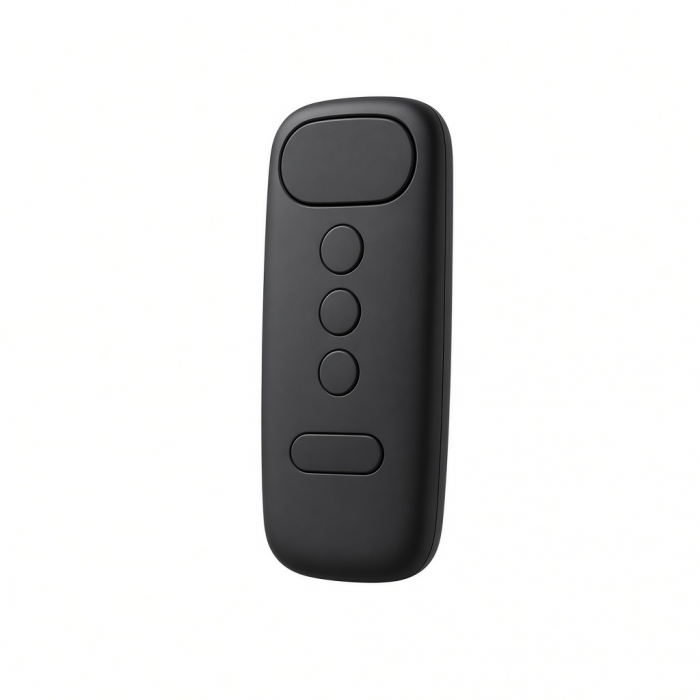
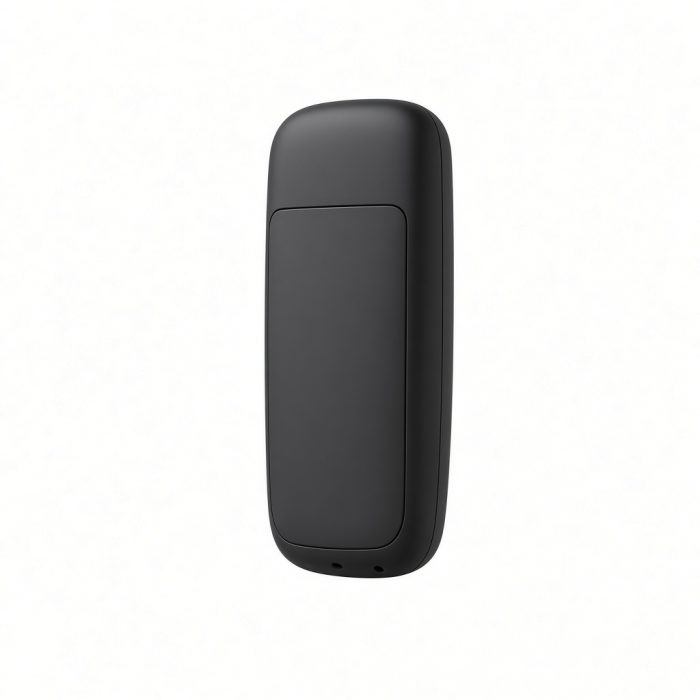
Enhance your presentations with the R1 Bluetooth Presentation Remote. Featuring wireless Bluetooth connectivity, back/forward presentation controls, a black-out screen, and a convenient LED laser pointer to help highlight your key points, the remote helps you take full control of your presentations.
Tech Specs
What’s In The Box
R1 Bluetooth Presentation RemoteUSB-C Charging CableUser Manual
Connector Type
Bluetooth 5.0
Dimensions & Weight
Length: 5.0 in. / 12.7 cmWidth: 1.48 in. / 3.76 cmHeight: 0.35 in. / 0.89 cmWeight: 2.2 oz / 62.37 g
SKU / UPC
ST-BTPR1M / 879961009328
Quick Guide
Download
Frequently Asked Questions
FAQ
California Residents
See CA Proposition 65 WarningTechnical Specifications
Bluetooth Version: 5.1Bluetooth Connectivity: Connect to 1 deviceCharging Port: USB-C (Charging Only)
Compatibility
MacBook Neo
MacBook
- MacBook Pro 16-inch M5 Max (2025)
- MacBook Pro 14-inch M5 Pro (2025)
- MacBook Pro 16-inch (2019 - 2024)
- MacBook Pro 14-inch (2021 - 2025)
- MacBook Pro 13-inch (2016 - 2023)
- MacBook Pro 15-inch (2016 - 2019)
- MacBook Air 15-inch (2022 - 2025)
- MacBook Air 13-inch (2018 - 2025)
Mac
- iMac (24-inch, 2021 - 2024)
- iMac (Retina 4K, 21.5-inch, 2017)
- iMac (Retina 5K, 27-inch, 2019–2020)
- iMac (Retina 5K, 27-inch, 2017)
- iMac Pro (2017)
- Mac Mini M6 (2026)
- Mac Mini M5 Pro (2026)
- Mac mini (2018 - 2025)
- Mac Studio (2022 - 2025)
- Mac Pro (2023)
iPad
- iPad Air M4 (2025)
- iPad Pro 12.9-inch (2018 - 2025)
- iPad Pro 11-inch (2018 - 2025)
- iPad Air 4th, 5th, 6th gen (M2)
- iPad 10th, 11th gen
- iPad mini 6th, 7th gen
iPhone
- iPhone 18 Pro Max (2026)
- iPhone 18 Pro (2026)
- iPhone 17e
- iPhone Air (2025)
- iPhone 17 Pro Max (2025)
- iPhone 17 Pro (2025)
- iPhone 17 (2025)
- iPhone 16 Pro Max (2024)
- iPhone 16 Pro (2024)
- iPhone 16 Plus (2024)
- iPhone 16 (2024)
- iPhone 15 Pro Max (2023)
- iPhone 15 Pro (2023)
- iPhone 15 Plus (2023)
- iPhone 15 (2023)
- iPhone 14 Pro Max (2022)
- iPhone 14 Pro (2022)
- iPhone 14 Plus (2022)
- iPhone 14 (2022)
- iPhone 13 Pro Max (2021)
- iPhone 13 Pro (2021)
- iPhone 13 (2021)
- iPhone 13 Mini (2021)
- iPhone 12 Pro Max (2020)
- iPhone 12 Pro (2020)
- iPhone 12 (2020)
- iPhone 12 Mini (2020)
- iPhone 16e
- iPhone 11 Series (Pro, Pro Max)
- iPhone X/ XR/ XS/ XS Max
Not recommended for 2011 & older Mac devices.
Important:Does not support Windows.
Does the R2 Remote work with the VLC app?
Yes. In Media Mode, the R2 Remote is fully compatible with the VLC app.
Does this function as an AirMouse?
Yes. The R2 Remote includes built-in accelerometers and gyroscopes, allowing it to function as an AirMouse. The mouse button toggles this feature on or off, enabling you to control the cursor directly on your device.
How do I access the virtual keyboard with my remote on a MacBook Pro?
The Virtual Keyboard Button is only functional with iOS devices. Since the remote uses the same Bluetooth profile as a wireless keyboard, iPhones and iPads normally disable the on-screen keyboard when paired. The button allows you to manually display it.Unfortunately, this feature is not supported on macOS and cannot be customized for use with a MacBook Pro.
How do I enable and use the On-Screen Pointer feature with an iPhone?
Due to a recent iOS update, you'll need to adjust your accessibility settings to use the On-Screen Pointer feature:
Go to Settings > Accessibility > Touch > Assistive Touch and toggle it on.
Switch the remote to Presentation Mode, then press the Mouse Button (mouse/microphone icon) to calibrate.
Use the directional buttons to navigate, the Mute/L button to select an application or bring up the on-screen keyboard, and the Home Button to return to the home screen.
If the on-screen keyboard does no...
Can the R2 Bluetooth Multimedia Remote be used with e-reader apps on an iPad?
Not all e-reader applications are guaranteed to work. However, when paired with an iPad in Presentation Mode, the remote's next/previous buttons function as right/left arrows, similar to a keyboard. If the e-reader app supports keyboard navigation, it will likely work with the R2 Remote in this mode.
-509x403.png "QICHENG TRADE LIMITED")