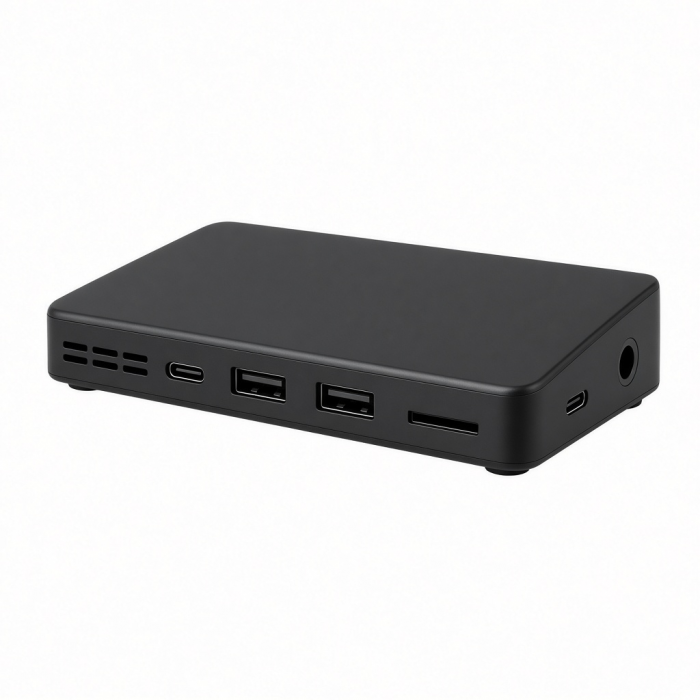
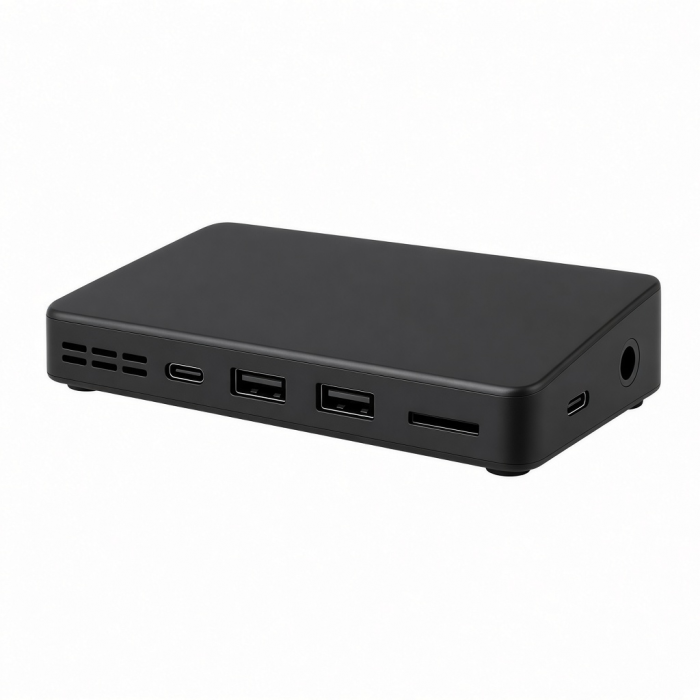
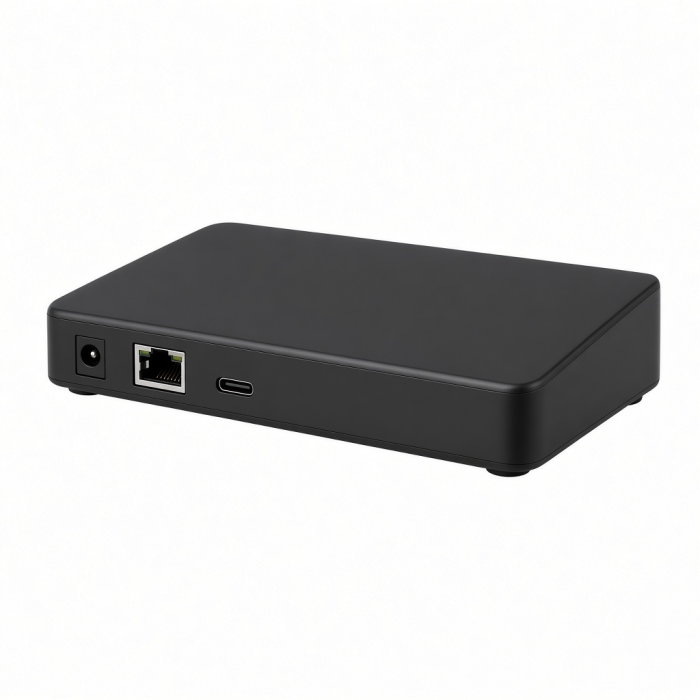
Designed to fit the 2021 & 2023 24-inch iMacs exclusively, the USB-C Slim Dock for 24” iMac provides a built-in enclosure to add external storage to your iMac and convenient access for all your most-loved ports and peripherals. Featuring a 10 Gbps USB-C data port, 10 Gbps USB-A data port, 2 x USB-A 2.0 ports, micro/SD card reader slots, and NVMe Sata Enclosure, the USB-C Slim Dock upgrades your iMac’s functionality while maintaining a sleek aesthetic all with a plug and play design.
Tech Specs
Connector Type
USB-C
Dimensions & Weight
Length: 27.9 cm
Width: 11.4 cm
Height: 1 cm
Weight: 10.6 oz
Included Cable Length:16.6in (42cm)
Model # / UPC
ST-UCISDS (Silver) / 810086360413
ST-UCISDB (Blue) / 810086360420
Speed
- 1x Type-C Upstream Port (HOST)
- 2x USB 2.0 Ports (480Mbps)
- 1x Micro SD Slot (UHS-I)
- 1x SD Card Slot (UHS-I)
- 1x USB-A (10Gbps) (Data only - no charging support)
- 1x M.2 SSD Slot (supports NVME & SATA)(up to 10Gbps speeds max) (2TB Max Capacity)
- 1x USB-C (10 Gbps) (Data only - no charging/video support)
Compatibility
Only compatible with the M1, M3, and M4 24" iMac.
This dock will not fit 2020 and earlier models. Enclosure compatible with M.2 form factor compatible with both SATA and NVME in sizes: 2242/2260/2280.USB-A ports do not support charging or CD readers, including Apple SuperDrive. We recommend connecting one bus-powered device at a time.
NVMe or M.2 SATA drive not included.
Not compatible with SSDs with Heat Sinks.
Color-matching USB-C connection cable included
Important Info
What’s In The Box
- USB-C Slim Dock for 24" iMac
- Type-C to Type-C Connection Cable
- Thermal Pad
- Extra SSD Silicone Plug
- User Manual
Quick Guide
Download
Frequently Asked Questions
FAQ
For California Residents
See CA Proposition 65 Warning
Does it support external usb 3.0 HDD 2.5?
We can confirm that the USB-C Slim Dock for 24” iMac is compatible with a USB external 2.5" HDD.
How do I install my SSD drive?
SSD Installation Guide (NVMe or M.2 SATA Drives)
1. Remove the SSD enclosures' Aluminum casing
1. Remove the Silicon Strip and Rubber Stopper (in the small black box with the user manual included)
2. Place the Silicon Strip under your SSD drive
3. Place the Rubber Stopper on the end of the SSD drive and ensure that the drive is inserted at an angle (make sure the SSD is inserted then press down on the rubber stopper to secure the drive)
4. Place the metal casing back on the dock
5. Plug the dock into your iMac's Thunderbolt 3 Port - now the dock and SSD drive will be ready to use.
*Step by step instructions will be included in the user manual as well as at the bottom of the dock
What are the transfer speeds for both the USB-C and USB-A ports and will it support charging?
The dock includes a USB-C data port that supports 10Gbps transfer speeds.
1x USB-A port that also supports 10Gbps and 2x additional USB-A 2.0 ports that will support 480Mbps or any connected peripherals like a USB-C mouse or keyboard
Having that these ports were designed specifically for data transfer, charging or video will not be supported.
My iMac will not detect my SSD drive after install, what can I do to access the drive?
First, you'll need to ensure that the SSD drive is properly formatted. To do so, please complete the following steps:
CMD + F > Disk Utility > Select SSD from List > Click Erase > Name your drive > Select APFS or Mac OS Extended as the format and then Erase the drive.
This will erase the drive and reformat it accordingly to allow the drive to be accessible.
Can I use my own USB-C cable instead of the one it comes included with?
You will be able to use any USB-C cable that supports USB3.1 Gen 2 or higher. However, it is recommended for users to use the included cable for optimum performance.
-509x403.png "QICHENG TRADE LIMITED")