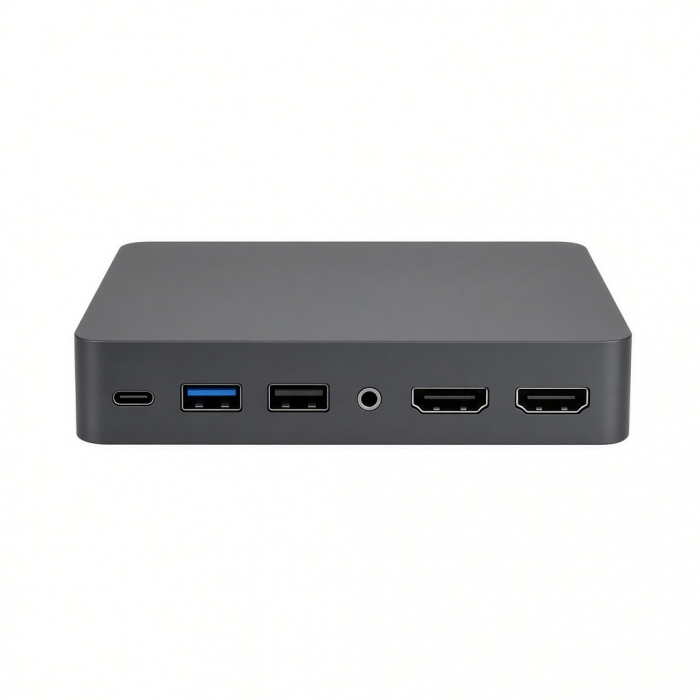
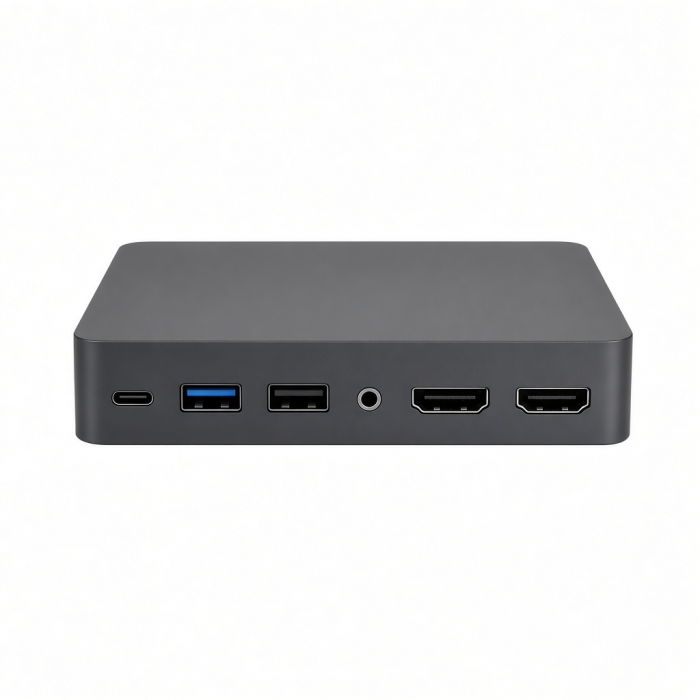
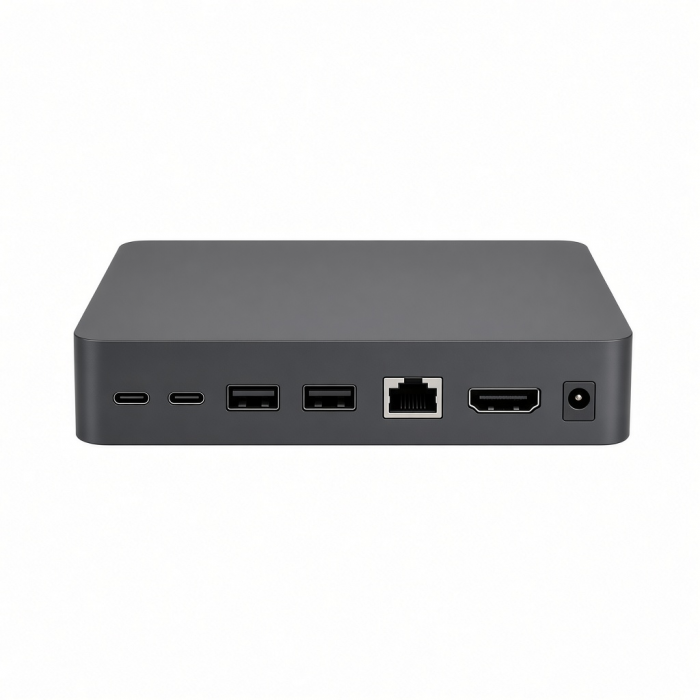
Power up with the new Thunderbolt 4 Multimedia Pro Dock by . Meticulously crafted with creative professionals and content creators in mind, this 16-in-1 powerhouse has everything you need to spark innovation and power up productivity. Thunderbolt 4 Multimedia Pro Dock will transform your workspace and completely change the way you work.
Compatible with both Mac and Windows PC, this versatile dock offers the best-in-class Thunderbolt 40Gpbs bandwidth for connecting up to four external screens and high-speed peripherals, while simultaneously delivering 96W of charging power to the host device – so you have one less cable to worry about.
Tech Specs
Connector Type
Dimensions & Height
- Length : 195mm
- Width : 105mm
- Height : 47mm
- Weight : 693 grams
- Included cable Length: 2'8"
SKU / UPC
- ST-DT4PMM-US / 810086360567 (USA)
- ST-DT4PMM-EU / 810086360581 (EU)
- ST-DT4PMM-UK / 810086360574 (UK)
- ST-DT4PMM-AU / 810086360598 (AU)
Speed
- 2x DisplayPort 1.4
- 2x HDMI 2.1
- 1x Thunderbolt 4 to host
- 1x USB-C 3.2 - 10Gbps
- 3x USB-A 3.2 - 10Gbps
- 2x USB-A 3.2 - 5Gbps
- 1x USB 2.0 for charging up to 7.5W
- SD and Micro SD card slots
- 3.5mm Audio Jack In/Out
- Ethernet - 2.5Gbps
- Kensington LockDC/20V Port - 135W Power Supply Included
- 96W PD Passthrough
WINDOWS– Because Windows supports Multi-Stream Transport (MST), the dock can output video to three or four screens in extended mode, which is very convenient for creators and gamers.
MAC– Mac supports Single Stream Transport (SST) so it can output video in extended mode to two screens and mirror the other two. M1 and M2 Macs only support one external monitor, meaning only one single video group can be used at a time with output to one screen in extended mode and one screen in mirror mode.
Transferring external storage will also be a breeze with two UHS-2 SD and Micro SD card slots that can be used simultaneously with a high transfer speed of 312MBs – perfect for content creators, photographers, videographers, etc.
Compatibility
- Base model M1/M2 MacBooks are limited to only one display.
- Base model M3 MacBook Air and Pro only support two displays (4K@60Hz) when closed and in Clamshell Mode.
MacBook Neo
- MacBook Neo (13-inch, 2026)*
*Compatible, but only supports 1 external display
MacBook
- MacBook Pro M5 Max (16-inch, 2026)
- MacBook Pro M5 Max (14-inch, 2026)
- MacBook Pro M5 Pro (16-inch, 2026)
- MacBook Pro M5 Pro (14-inch, 2026)
- MacBook Pro 16-inch (2019 - 2024)
- MacBook Pro 14-inch (2021 - 2025)
- MacBook Pro 13-inch (2016 - 2023)
- MacBook Pro 15-inch (2016 - 2019)
- MacBook Air M5 (15-inch, 2026)
- MacBook Air M5 (13-inch, 2026)
- MacBook Air 15-inch (2022 - 2025)
- MacBook Air 13-inch (2018 - 2025)
Mac/iMac
- iMac 24-inch (2021 - 2024)
- iMac 21.5-inch (2017 - 2021)
- iMac 27-inch (2017 – 2020)
- iMac Pro (2017)
- Mac Mini M6 (2026)
- Mac Mini M5 Pro (2026)
- Mac mini (2018 - 2024)
- Mac Studio (2022 - 2025)
iPad
- iPad Pro 12.9-inch (2021 - 2024)
- iPad Pro 11-inch (2018 - 2024)
- iPad Air (2020 - 2025)
- iPad (2022 - 2025)
- iPad mini (2021 - 2024)
iPhone
- iPhone 17 Pro / Max (2025)
- iPhone 16 Pro / Max (2024)
- iPhone 15 Pro / Max (2023)
Dell
- XPS 13 Plus (9320)
- XPS 15 (9530)
Lenovo
- ThinkPad X1 Carbon Gen 12
- Yoga 9i Gen 9
Microsoft
- Surface Pro 9
- Surface Laptop Studio 2
- Surface Laptop 5
OS Compatibility
- iOS/iPadOS 10.2 or later
- macOS x 10.6-10.12 or later
- Windows 11, 10, 8**
- Chrome OS
**System Requirements: Thunderbolt 4, Thunderbolt 3, USB4, or USB 3.2 Gen2 with DP Alt Mode Type-C ports required for optimal use
Important Info
What’s In The Box
Thunderbolt 4 Multimedia Pro Dock
USB-C Thunderbolt 4 Cable
135W power supply
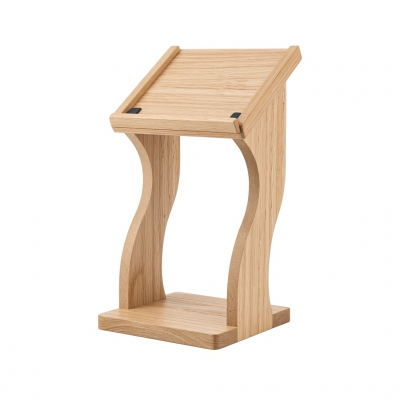
Vertical Stand
Quick Guide
Download
Frequently Asked Questions
FAQ
For California Residents
See CA Proposition 65 Warning
Important Info
- Base model M1/M2 MacBooks are limited to only one display.
- M3 MacBook Air/Pro only supports two displays (4K@60Hz) in Clamshell Mode.
Does the Thunderbolt 4 Multimedia Pro Dock support DisplayLink?
No, the Thunderbolt 4 Multimedia Pro Dock does not support DisplayLink. On Macs (including M1, M2, M3, and M4 models): macOS limits the number of external monitors to two, regardless of how many video outputs the dock provides. On Windows PCs: the dock can support up to four external displays, as long as the computer’s GPU and hardware support this configuration. If you need more than two external displays on a Mac, you will need a dock or adapter that explicitly uses DisplayLink technology such as the Thunderbolt 4 Docking Station with DisplayLink
Why can't I hear Audio on my Headphones when connected to the 3.5mm Audio Port of this Hub, dock or adapter?
You will need to head to System Settings > Sound > Output
Then plug your 3.5mm headphones (or speakers) into the 3.5mm port of the dock, hub or adapter and select "USB PnP Audio Device or General USB Audio Device". The Aux port will support most 3.5mm Headphones, speakers or microphones.
If you are still experiencing issues, please reach out to us directly at [email protected]
Do I have to use any software with the dock?
No, the Thunderbolt 4 Multimedia Pro Dock does not require any software to be installed for use. Basically, plug and play!
SiliconMotion or DisplayLink Software is not supported or needed.
Is this compatible with the M4 iPad Pro?
Although recommended for Laptops, we can confirm compatibility with the M4 iPad Pro.
Please note: Users will be limited to 1 external display max. (If using a 2nd external monitor, it will mirror the display from the iPad or the 1st external monitor)
Why Is My Monitor Only Mirroring My Mac?
There may be a simple adjustment that needs to be made on your device to adjust this issue.
Go to "Settings" > "Displays" > Select the external monitor > Click the drop-down and select "Extended Display"
Now whenever you connect your external monitor it will extend vs only mirroring.
-509x403.png "QICHENG TRADE LIMITED")