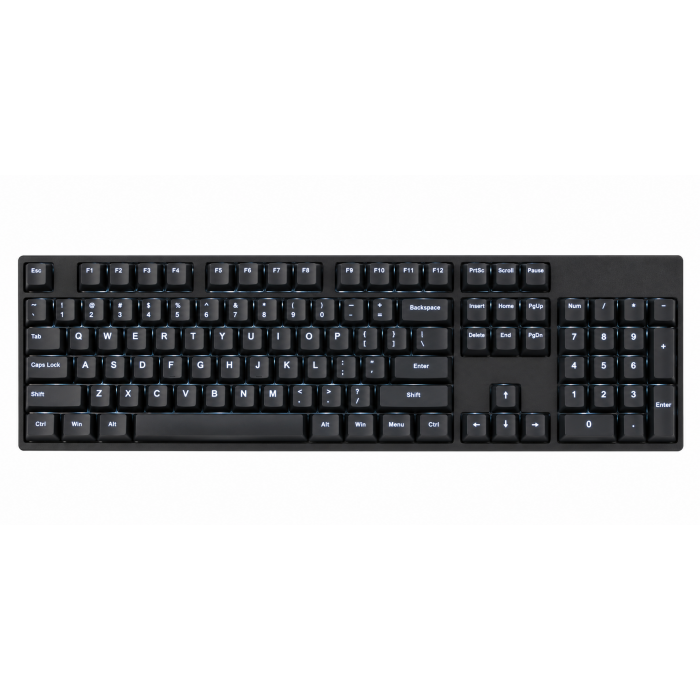
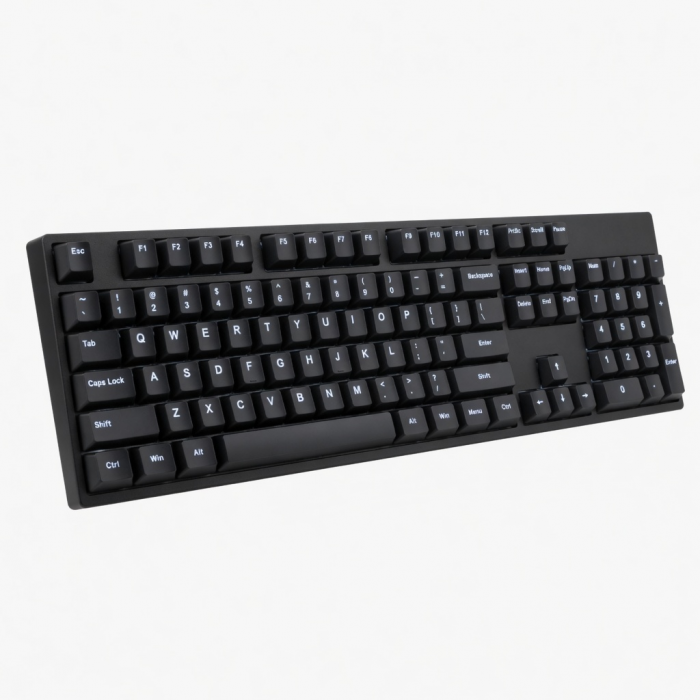
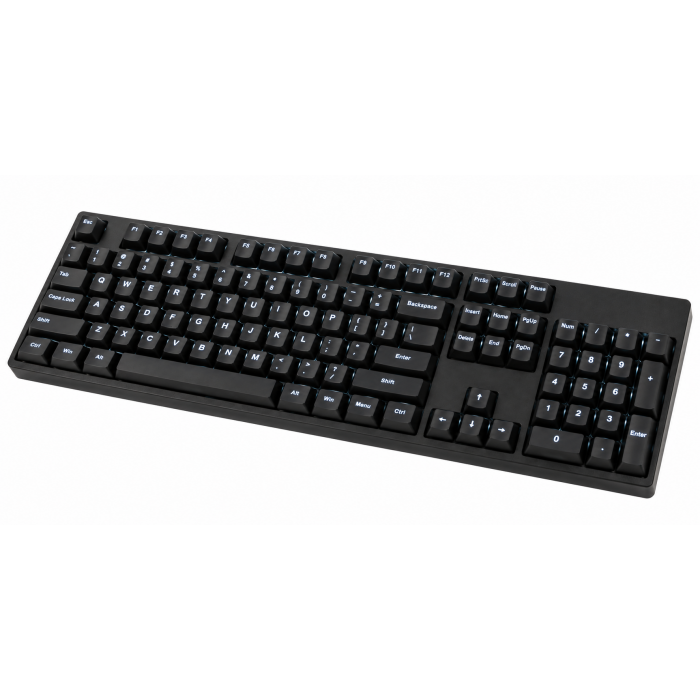
Introducing the first wireless mechanical keyboard designed for both Mac and Windows. This compact keyboard is equally perfect as a gaming keyboard or a keyboard for typing. It features a beautiful white backlight, 14 different backlight patterns, and high-quality tactile switches. In other words, it looks, feels, and sounds like the mechanical keyboard you've been waiting for.
Tech Specs
Dimensions & Weight
Length: 12.12 in. / 30.8 cm
Width: 4.68 in. / 11.9 cm
Height: 0.9 in. / 2.4 cm
Weight: 16.61 oz / 470.9 g
SKU (Color) / UPC
ST-KSM1LT-EN (Light) / 810086361199
ST-KSM1DK-EN (Dark) / 810086361205
Technical Specifications
Bluetooth Version: 5.0Bluetooth Connectivity: Connect with up to 2 separate devices
2.4Ghz Connectivity: Connect to 1 device via 2.4Ghz USB-C Receiver
Wired Connectivity: Connect to 1 device via USB-C Cable
Port Type: USB-C (Charging and Wired Mode)
Switch Type: Tactile Low-Profile Brown Switches
Compatibility
MacBook Neo
- MacBook Neo (13-inch, 2026)
MacBook
- MacBook Pro M5 Max (14" & 16", 2026)
- MacBook Pro M5 Pro (14" & 16", 2026)
- MacBook Pro 16-inch (2019 - 2024)
- MacBook Pro 14-inch (2021 - 2025)
- MacBook Pro 13-inch (2016 - 2023)
- MacBook Pro 15-inch (2016 - 2019)
- MacBook Air 15-inch (2022 - 2025)
- MacBook Air 13-inch (2018 - 2025)
Mac
- iMac 24-inch (2021 - 2024)
- iMac 21.5-inch (2017 - 2021)
- iMac 27-inch (2017 – 2020)
- iMac Pro (2017)
- Mac Mini M6 (2026)
- Mac Mini M5 Pro (2026)
- Mac mini (2018 - 2024)
- Mac Studio (2022 - 2025)
iPad
- iPad Air M4 (11" & 13", 2026)
- iPad Pro 12.9-inch (2021 - 2025)
- iPad Pro 11-inch (2018 - 2025)
- iPad Air (2020 - 2025)
- iPad (2022 - 2025)
- iPad mini (2021 - 2024)
iPhone
- iPhone 18 Pro Max (2026)
- iPhone 18 Pro (2026)
- iPhone 17e
- iPhone Air (2025)
- iPhone 17 Pro Max (2025)
- iPhone 17 Pro (2025)
- iPhone 17 (2025)
- iPhone 16 Pro Max (2024)
- iPhone 16 Pro (2024)
- iPhone 16 Plus (2024)
- iPhone 16 (2024)
- iPhone 15 Pro Max (2023)
- iPhone 15 Pro (2023)
- iPhone 15 Plus (2023)
- iPhone 15 (2023)
- iPhone 16e
- iPhone 11 Series (Pro, Pro Max)
- iPhone X/ XR/ XS/ XS Max
Windows
- Microsoft Surface Pro 4/5/6/7/8/9
- Microsoft Surface Laptop Studio
- Lenovo ThinkPad X13 Gen 2
- Lenovo X1 Gen 1 Carbon
- Lenovo Yoga 720-13IKB
- Lenovo Legion S7 15ACH6
- Dell XPS 13 9315
- HP Spectre & other USB-C Devices
Not recommended for 2011 & older Mac devices.
Important Info
What's In The Box
- SM1 Slim Mechanical Backlit Bluetooth keyboard
- Windows Keycaps (Windows keys, Left Alt key, Right Alt key)
- 2.4GHz USB Receiver (attached to the bottom of the keyboard)
- 1.2m USB-C to USB-C Cable
- User Manual
Quick Guide
Quick Guide
Frequently Asked Questions
FAQ
For California Residents
See CA Proposition 65 Warning
How long will the battery last?
16.5 hours with backlight enabled and approximately 2 months with backlight disabled.
Does the SM1 keyboard support VIA key mapping?
The SM1 Mechanical Keyboard is not equipped with a VIA chip and does not support VIA key mapping.
Can I purchase or use my own keycaps on the SM1 Slim Mechanical Backlit Bluetooth Keyboard?
Yes. You can purchase or use your own keycaps for a more customized look. Just make sure to use Low Profile MX style keycaps.
What are the dimensions of the SM1 Slim Mechanical Backlit Bluetooth Keyboard?
Weight - 471g
Length - 308mm
Width - 119mm
Height - 24mm
Keyboard Shortcuts
FN + Left CTRL + DEL – Factory reset (clears Bluetooth profiles)
FN + DEL – Lock Screen (Mac only)
FN + ESC – Swap F1–F12 keys between Hot Keys and Function keys
F1 & F2 – Adjust Display Brightness
F3 – Mission Control (Mac)
F4 – Spotlight Search (Mac)
F5 & F6 – Adjust Keyboard Brightness
F7/ F8/ F9 – Media Controls (Previous, Play/Pause, Forward)
F10/ F11/ F12 – Volume Controls (Mute, Lower, Raise)
Scissors – Screen...
How do I pair and swap between Bluetooth, USB-A Wireless Receiver, and Wired modes?
On the number row of your keyboard, you'll find the 1, 2, 3 and 4 keys with icons representing the different modes that you'll be able to use and swap between when pressing the corresponding key while holding down the fn key (located on the bottom right of the keyboard).
1 Key - Bluetooth Profile 1
2 Key - Bluetooth Profile 2
3 Key - USB-A Wireless Receiver
4 Key - Wired Mode
Pairing the keyboard via bluetooth
While holding down the fn key, press and hold down either the 1 or 2 key for 5...
-509x403.png "QICHENG TRADE LIMITED")